Macro Space Panel

Macro Space APK Information
| App Detail | Information |
|---|---|
| App Name | Macro Space |
| File Format | APK |
| Platform | Android |
| Category | Gaming Utility |
| Main Purpose | Gaming controls and setup |
| Compatibility | Varies with the version you choose |
Macro Space Permissions Explained: Accessibility Access and Android Settings (2026)
Every Android app asks for permissions, and some ask for a lot more than others. Macro Space is linked to Android automation, things like touch actions and timing controls, so it’s worth knowing what you’re agreeing to. A minute of checking before you tap “Allow” can save you a lot of trouble later.
In this guide, we’ll go through accessibility access, other Android permission settings, common problems, and how to review what an app can do. We’ll also look at the Macro Space APK installation process from a privacy and security point of view. The goal is simple. You should know what you’re turning on, and why it matters.
What Is Macro Space and Why Do Permissions Matter?
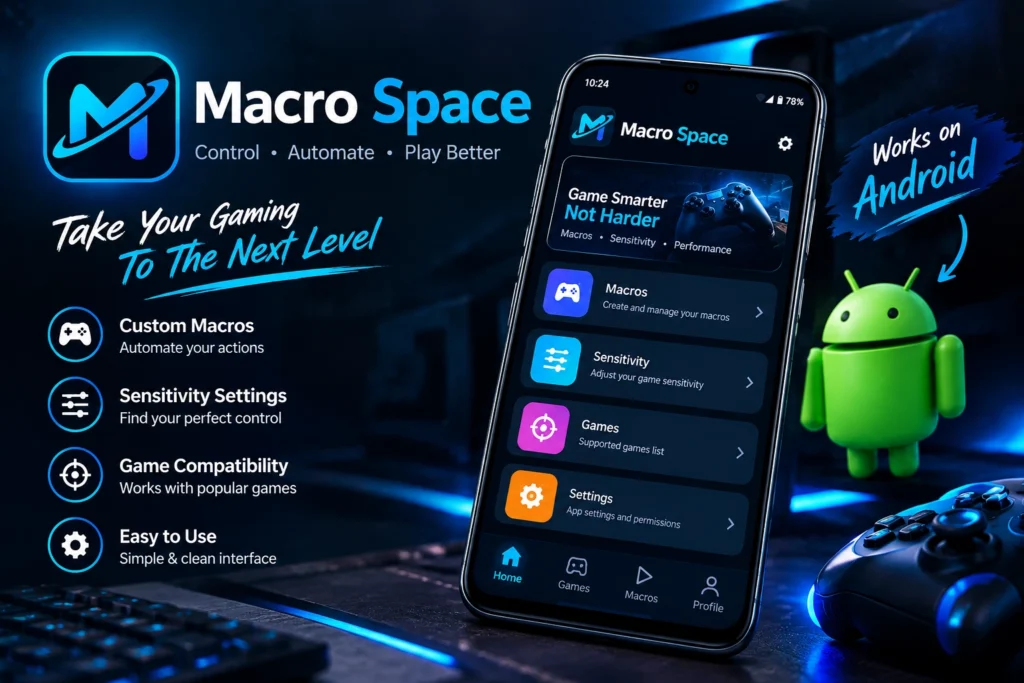
Macro Space is an Android automation tool linked to taps, swipes, and timed actions. What it can actually do depends on the release you install and the phone you use. Some features may ask for more access than a regular app would.
Think of a permission as a key. It decides what an app can see or do on your phone. If you hand one over without knowing why it’s needed, you may create privacy risks you never planned for. So before you switch anything on, ask yourself a few things:
- Purpose: Which feature really needs this permission?
- Control: Can you turn it off again later?
- Privacy: What could this permission expose?
- Compatibility: Does the setting work on your Android version?
- Trust: Do you know where the app came from?
A permission list can’t tell you if an app is safe. It only shows what the app is asking for. The rest is your call.
What Is Accessibility Access on Android?
Sooner or later, anyone looking at automation tools runs into accessibility settings. Android Accessibility Services were built mainly to help people with disabilities use their phones. Screen readers and switch-based controls are good examples.
Depending on how it’s built, an accessibility service can pick up interface events, read some of what’s on your screen, or carry out certain actions. That’s why it’s a bigger deal than something like the notification permission.
When an app wants this access, Android sends you to a system setting where you can review the service and turn it on. The menu names change between brands and Android versions, so yours may look a little different.
A few things worth remembering:
- Accessibility access is separate from standard app permissions.
- A service can only do what it was built to do and what Android allows.
- Some services can see information that’s visible on your screen.
- Turning a service off stops its accessibility functions.
- Approving the access doesn’t mean every feature will work.
Google also has rules for apps that use accessibility capabilities. They exist to stop the permission from being misused, especially for apps on Google Play.
How to Enable Accessibility Access for Macro Space
Some versions of the app may ask for accessibility access and send you to Android’s Accessibility menu. Only follow these steps if you understand why the feature needs it.
- Open the app on your Android phone.
- Find the feature or setting that asks for accessibility access.
- Read the explanation the app gives you.
- Open Android Settings when prompted.
- Tap Accessibility.
- Look for the section with installed or downloaded accessibility services.
- Find the service you need, if it’s listed.
- Read its description and the capabilities it asks for.
- Enable it only if you understand and accept what it does.
- Go back to the app and test the feature.
Phones label these menus differently. You might see Installed apps, Downloaded apps, or Installed services.
What if the service isn’t there? Don’t switch on a random option that looks close enough. Check the app’s instructions and your Android version first to see why it’s missing.
What Does Accessibility Permission Allow an App to Do?
Accessibility access can give an app a lot of control over the interface. How much, though, depends on how the service is built, how it’s set up, and what Android restricts.
Depending on the capabilities it declares and uses, an accessibility service may be able to:
- Notice certain interface events, such as a change in focus.
- Read on-screen content when it has the right capabilities.
- Perform supported actions on interface elements.
- Send gestures like taps or swipes, when allowed.
- Keep running as long as the service stays enabled and its conditions are met.
Not every app gets these abilities for free. Developers have to build them in, and Android decides what’s permitted.
An automation tool might use these features to run a set sequence of actions. That doesn’t mean every release supports every gesture, or that it works with every game.
Because these services can come across sensitive information on your screen, only grant the access when you reasonably trust the app and where it came from.
Other Android Permissions and Settings to Check
Accessibility isn’t the only thing an app might ask for. Other permissions have their own purposes, so it’s best to look at each one on its own.
Check these settings if they show up on your device:
- Notifications: Allow alerts if you want the app to notify you.
- Display over other apps: See how the app may show content on top of other apps.
- Battery settings: Look at background restrictions if a feature keeps stopping.
- Files and media: Think twice before letting an app reach your photos, videos, or other files.
- Accessibility: Turn it on only when you know what it’s for.
Not every version needs all of these. It depends on how the app is designed, so don’t assume each one is required.
To review ordinary permissions, open Settings, tap Apps, and pick the app’s info page. Special permissions sometimes live in separate system menus.
How to Review Permissions Before Installing Macro Space APK
An APK can be shared outside Google Play. When that happens, checking the source and the permissions matters even more, because a file can be changed before it reaches you.
Before you install a Macro Space APK, run through this checklist:
- Check the source: Pick a source you can judge on your own.
- Review package details: Compare the version and developer details with reliable release information, if you can find it.
- Inspect requested access: Be careful if the permissions have nothing to do with what the app does.
- Scan the file: Use a reputable security tool where possible.
- Read Android warnings: Understand any install or security warning before you continue.
- Avoid misleading labels: A file marked Pro, Premium, or Mod isn’t automatically official or trustworthy.
- Protect your data: Back up important files before you install unfamiliar software.
A clean scan doesn’t guarantee a file is harmless. And a familiar app name doesn’t prove the file came from the original developer.
Android may warn you about installing apps from unknown sources. If you still decide to go ahead, know the risks and try not to weaken your phone’s security more than you have to.
What Is the Difference Between Macro Space, Macro Space Panel, and Macro Space Panel APK 2026?
Search results throw around a lot of similar names for automation tools and their installation files. Similar wording, however, doesn’t mean the downloads contain the same app.
| Term | Common search meaning |
|---|---|
| Macro Space | The general app or tool name |
| Macro Space Panel | A panel, interface, or related tool described by that name |
| Macro Space APK | An Android installation package associated with the tool |
| Macro Space Panel APK 2026 | A search phrase for a panel package presented as a 2026 release |
The phrase Macro Space Panel APK 2026 doesn’t confirm that a file is the newest release, officially supported, or safe to install.
If you want to compare two packages, look at their package names, version numbers, developer details, and requested permissions. Add any release information you can find. Files with similar names can hold different code and ask for different levels of access.
So judge the package you actually install, not just the title on a download page.
How to Disable Accessibility Access Safely
Changed your mind? You can turn off an accessibility service in Android Settings whenever you like, whether you’ve stopped needing it or just want the feature to stop.
Here’s the general process:
- Open your phone’s Settings.
- Tap Accessibility.
- Open the section that lists installed accessibility services.
- Find the app or service.
- Switch the service off.
- Confirm if Android asks.
- Go back to the app and check that its automation features have stopped.
Turning off accessibility access doesn’t uninstall the app. It also doesn’t remove the app’s other permissions, so review those separately if needed.
If you don’t want the app anymore, uninstall it from Android’s app management settings. Just remember that anything relying on the accessibility service will stop working once it’s disabled.
Common Accessibility Permission Problems and Fixes
Permission problems usually appear when Android doesn’t recognize an enabled service, or when an app can’t use a feature it asked for. These checks can help you find the cause.
The accessibility option is missing
- Make sure the app is installed correctly.
- Look in the section that lists installed accessibility services.
- Check that your installed version supports the feature.
- Look for instructions that match your phone model.
The permission looks enabled, but the feature doesn’t work
- Confirm the service is still switched on.
- Close the app and open it again.
- Restart your phone if the problem continues.
- Check whether the release supports your Android version.
Android turns off the service
Some phones add their own battery or background limits. Look at those settings and the app’s instructions before you change anything. And don’t turn off wider security protections just to keep an unfamiliar service running.
The app asks for unexpected permissions
Hold off until you know why the access is needed. If you can’t find a clear reason, consider removing the app.
If none of this helps, the problem may be inside the app rather than in Android’s permission settings.
Is Macro Space Accessibility Access Safe?
It depends. Whether Macro Space accessibility access is safe comes down to the package you install, where it came from, and what capabilities it uses. The permission name alone can’t tell you if an app is trustworthy.
When a service uses accessibility access openly for supported functions, it can serve a genuine purpose. The same capabilities, though, can create privacy risks if the app is untrustworthy or uses the access in ways you didn’t expect.
Before you enable the service:
- Read the permission explanation carefully.
- Stay away from files from suspicious download sources.
- Never share passwords or verification codes with an app.
- Turn off access you no longer need.
- Remove the app if you notice suspicious behavior.
Planning to use automation in an online game? Check the game’s rules too. Third-party automation may break a game’s policies and put your account at risk. Android’s permission doesn’t mean the game developer approves of the tool.
Frequently Asked Questions
1. Does Macro Space always require accessibility access?
Not necessarily. It depends on the version you installed and the features you want. Check the permissions the app actually asks for instead of assuming every release needs the same access.
2. Can I use the app without accessibility permission?
Possibly. Features that depend on accessibility may stop working, while others may still be available. It comes down to how the app is designed.
3. Does accessibility permission allow an app to read everything on my phone?
Not automatically. The access depends on what the service is built and configured to do. Still, some services can look at interface content, so treat this permission with care.
4. Where can I find accessibility settings on Android?
Open Settings and search for Accessibility. On some devices, installed services appear under a submenu like Installed apps or Downloaded apps.
5. Is Macro Space Panel APK 2026 an official release?
The name alone can’t prove it. Look for reliable developer or release information before you trust a file labelled with a year or version.
6. Why does accessibility access turn off automatically?
It could be device-specific background limits, a software glitch, or a change to the installed app. Check your device settings and the app’s instructions before you change anything.
7. Can I disable accessibility access after enabling it?
Yes. Open Android’s Accessibility settings, find the service, and switch it off. Features that rely on it may stop working afterward.
8. Should I install an APK if it requests many permissions?
Not before you find out why it needs them. Review the source, the permission explanations, and any security information you can find. If important requests stay unexplained, don’t install it.
Conclusion
Android’s permission settings give you a clear view of how apps interact with your phone. If you use Macro Space, take extra care with accessibility access, because it can reach further than an ordinary app permission.
Look at what the app asks for, check where the package came from, and enable only what you understand. If a request feels unnecessary or suspicious, leave it off until you know why it’s there.